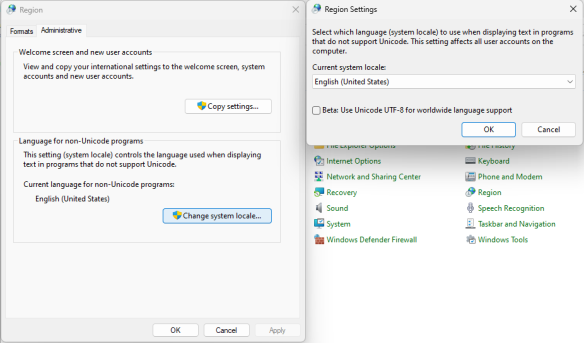
We recommend setting the computer to English. This will help to eliminate encoding issues when generating reports. Visual3D and Theia3D may not be able to process files if non-English special characters are used, which can result in difficulties locating files and failures in the data processing. If this occurs we recommend to change the system language to English and set the language for non-Unicode programs to English. These suggestions are particularly relevant for users of Chinese, Indian, and Cyrillic languages.
Note: Visual3D .cmz file will not be possible to open if the folder name where Visual3D file is located has Cyrillic letters.
To change the language for non-Unicode programs to English go to Control Panel > Region and select the Administrative tab. In the Administrative tab, change the Language for non-Unicode programs to 'English (United States)'.
To change Windows display language go to Control panel > System > Time & language > Language & region and set the Windows display language to 'English (United States)'.
